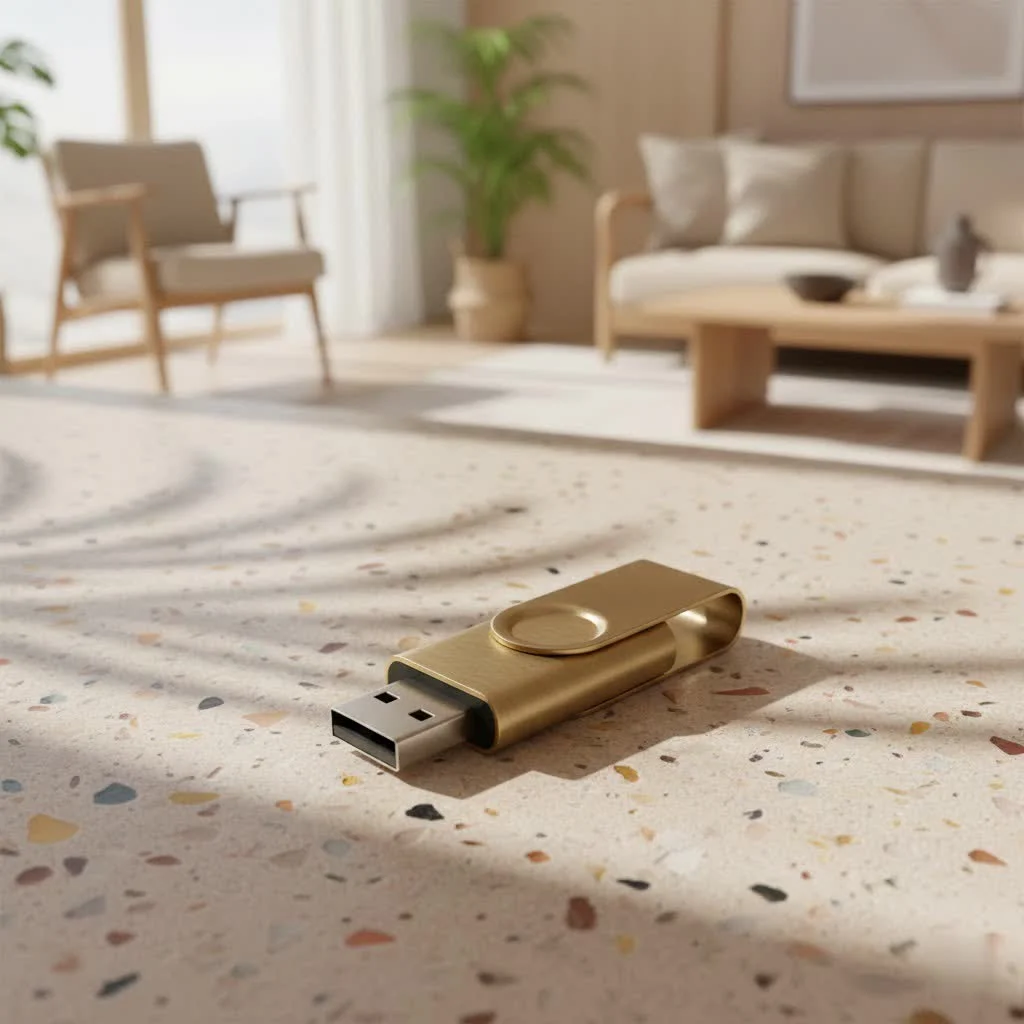
A flash drive for your iPad significantly expands storage, simplifies data transfer, and enhances productivity, transforming your tablet into a more versatile device. iPads, while powerful, have fixed internal storage that can be a bottleneck, especially for large files like photos, videos, and documents. By using a compatible flash drive, users can offload data, create backups, and even work on projects directly from external storage, overcoming the limitations of internal capacity.
Why You Need a Flash Drive for Your iPad
While cloud storage is valuable, it often requires an internet connection and can incur recurring costs. A physical flash drive offers immediate, offline access and a tangible backup solution, making it an indispensable tool for many iPad users.
Expand Storage: Overcoming Limited Internal Capacity
One of the most common reasons to use a flash drive for your iPad is to break free from storage constraints. Apple devices come with a set amount of internal storage that cannot be upgraded after purchase. Whether you are a photography enthusiast, a budding filmmaker, or someone who loves downloading movies for a long trip, your iPad’s storage can fill up fast. A flash drive provides an affordable and flexible way to add gigabytes—or even terabytes—of extra space, ensuring you never have to delete cherished memories or important files to make room for new ones.
Seamless Data Transfer: Moving Files with Ease
Imagine needing to move a large presentation from your iPad to a desktop computer, or sharing a collection of family photos with a friend who does not use Apple devices. Trying to email large files or relying solely on AirDrop can be cumbersome. A flash drive simplifies this process dramatically, acting as a universal bridge for your data. With a flash drive, you can quickly transfer documents, media, and other files between your iPad, Mac, Windows PC, or even other tablets and smartphones. This cross-platform compatibility is a major upgrade for anyone who juggles multiple devices in their daily routine.
Backup and Security: Protecting Your Precious Data
Data loss is a nightmare no one wants to experience. While iCloud offers some peace of mind, having a physical backup is an extra layer of security. A flash drive allows you to create a local, tangible copy of your most important data, from irreplaceable photos to crucial work files. Many modern flash drives also offer encryption and password protection features, ensuring that even if your drive falls into the wrong hands, your personal information remains private and secure. It is about peace of mind, knowing your digital life is safeguarded.
Enhanced Productivity: Working Directly with Large Files
|
Our Picks for the Best Flash Drive in 2026
As an Amazon Associate I earn from qualifying purchases.
|
||
| Num | Product | Action |
|---|---|---|
| 1 | Amazon Basics 128 GB Ultra Fast USB 3.1 Flash Drive, Black |

|
| 2 | SANDISK 128GB Extreme Fit USB-C Flash Drive - Up to 400MB/s Read speeds, USB 3.2 Gen 1, USB Type-C - Plug-and-Stay Storage - Black - SDCZ530-128G-G46 |
|
| 3 | SanDisk 256GB Ultra Flair USB 3.0 Flash Drive - SDCZ73-256G-G46, black |
|
| 4 | USB Flash Drive 64GB, Techkey External Memory Photo Keeper Storage Stick for Picture/Video/Data Saver/Backup V2.30 High Speed Thumb/Jump/Hard Drives-Coal Black |
|
| 5 | USB Flash Drive 64GB, Techkey External Memory Photo Keeper Storage Stick for Picture/Video/Data Saver/Backup V1.96 High Speed Thumb/Jump/Hard Drives-Lavender Blush |
|
| 6 | SanDisk 128GB Ultra Flair USB 3.0 Flash Drive - SDCZ73-128G-G46, black |
|
| 7 | Amazon Basics USB Flash Drive, Thumb Drive Memory Stick with USB C and USB A Dual Ports, 128GB, Champagne Silver |
|
| 8 | SanDisk 64GB 2-Pack Ultra USB 3.0 Flash Drive (2x64GB) - SDCZ48-064G-GAM462, Black |
|
| 9 | SAMSUNG FIT Plus 3.1 USB Flash Drive, 128GB, 400MB/s, Plug In and Stay, Storage Expansion for Laptop, Tablet, Smart TV, Car Audio System, Gaming Console, MUF-128AB/AM,Gunmetal Gray |
|
| 10 | Amazon Basics 256 GB Ultra Fast USB 3.1 High Capacity Flash Drive for Data Transfer and Storage, Black |
|
For creative professionals or power users, the ability to work directly from a flash drive on an iPad is a significant advantage. If you are editing 4K video, manipulating high-resolution images, or managing extensive project files, portable Solid State Drives (SSDs) connected to your iPad can deliver the speed and capacity needed to handle these demanding tasks without bogging down your device’s internal storage. This direct workflow eliminates the need to constantly transfer files back and forth, streamlining your creative process and boosting your efficiency on the go.
Understanding iPad Connectivity: Lightning vs. USB-C
Before you dive into buying a flash drive for your iPad, it is crucial to understand how your specific iPad model connects to external devices. Apple has used two primary port types on iPads: Lightning and USB-C. This distinction dictates the type of flash drive or adapter you will need.
The Lightning Era: Adapters are Your Friends
If you own an older iPad model, such as the iPad (9th generation or earlier) or older iPad Minis and Airs, your device likely features Apple’s proprietary Lightning port. While Lightning flash drives exist, you will often find more versatility and better value by using a standard USB-A flash drive in conjunction with a compatible adapter.
What You Need for Lightning iPads
For Lightning-equipped iPads, the key accessory is a reliable adapter. The most common and recommended options are:
- Lightning to USB Camera Adapter: This allows you to connect a standard USB-A flash drive to your iPad.
- Lightning to USB 3 Camera Adapter: For better performance, especially with larger drives or when connecting other USB 3.0 devices, this adapter is a solid choice. It also often includes a Lightning port for pass-through charging, which is vital for power-hungry external drives.
some external hard drives or higher-capacity SSDs might require more power than your iPad’s Lightning port can provide on its own. In such cases, using the Lightning to USB 3 Camera Adapter with your iPad’s power adapter connected to its pass-through port becomes essential to prevent “device needs too much power” errors.
The USB-C Revolution: Plug-and-Play Simplicity
The landscape for external storage on iPads shifted dramatically with the introduction of USB-C ports on newer models. The iPad Pro (2018 and later), iPad Air (4th generation and later), iPad mini (6th generation and later), and the 10th-generation iPad all feature a USB-C port. This change brings a world of plug-and-play simplicity and significantly faster data transfer speeds.
The Benefits of USB-C
With a USB-C port, you can directly connect a wide array of USB-C flash drives or portable SSDs to your iPad without the need for additional adapters. This direct connection translates to:
- Faster Speeds: USB-C supports higher data transfer rates, making moving large files much quicker.
- Greater Compatibility: USB-C is a universal standard, meaning flash drives designed for modern laptops and Android devices will likely work seamlessly with your iPad.
- Enhanced Power Delivery: USB-C ports can deliver more power, allowing you to connect a broader range of external drives, including many SSDs, without needing an external power source. For very power-intensive devices, a powered USB-C hub can be used, often providing additional ports for other accessories like monitors or card readers.
Using a USB-C flash drive for your iPad Pro or other newer models is a truly effortless experience, making it ideal for professionals and everyday users alike.
Choosing the Right Flash Drive for Your iPad
Selecting the perfect flash drive for your iPad involves a few key considerations. It is not just about capacity; connector type, speed, and even durability play significant roles in how well the drive integrates into your workflow.
Connector Type: Matching Your iPad
The first and most critical step is to identify the port on your iPad.
- For USB-C iPads: Look for flash drives with a USB-C connector. Many excellent options offer dual connectors (USB-C and USB-A) for seamless compatibility with older computers too. Brands like SanDisk, Samsung, and Lexar offer various dual-drive options that are highly recommended.
- For Lightning iPads: You will need either a flash drive specifically designed with a Lightning connector (like the SanDisk iXpand series) or a standard USB-A flash drive combined with an Apple Lightning to USB Camera Adapter.
Choosing a dual-connector drive that offers both USB-C and USB-A (or Lightning and USB-A) can be a smart move, providing maximum flexibility across all your devices, current and future.
Capacity: How Much Storage Do You Really Need?
Flash drives come in a wide range of capacities, typically starting from 32GB and going up to 1TB or even 2TB for portable SSDs.
- 64GB – 128GB: Great for occasional document transfers, photo backups, or a few movies for travel.
- 256GB – 512GB: Ideal for students, photographers, or anyone regularly handling larger files and needing ample space for backups and media.
- 1TB and Up (SSDs): Essential for video editors, graphic designers, or users with massive photo and video libraries who require top-tier performance and storage for working on projects directly from the drive.
Consider your typical usage patterns. Do you just need to offload a few photos, or are you planning to store entire seasons of a TV show or extensive project files? It is often wise to go slightly above what you think you need – you will thank yourself later!
Speed: USB 2.0, 3.0, 3.1, 3.2, and Thunderbolt
The speed of your flash drive, measured in read/write speeds, directly impacts how quickly you can transfer files.
- USB 2.0: These are generally older and slower. While compatible, they will be noticeably slower for larger file transfers.
- USB 3.0/3.1/3.2: These offer significantly faster speeds, making them ideal for most users. Modern flash drives typically support at least USB 3.0 (now often referred to as USB 3.2 Gen 1).
- USB-C with Thunderbolt/USB 4: Newer iPad Pro models support Thunderbolt / USB 4, which can offer blazing-fast transfer speeds, especially when paired with compatible external SSDs. This is crucial for professionals dealing with massive files, such as 4K or 8K video.
For the best experience, particularly with larger files, I always recommend opting for a flash drive that supports at least USB 3.0 or higher. The time saved during transfers quickly adds up!
Durability and Security Features
Your data is valuable, so considering durability and security is paramount.
- Rugged Drives: Some flash drives and portable SSDs are designed with robust casings that offer shock, water, and dust resistance, making them perfect for users on the go or those in less forgiving environments. The SanDisk Extreme Portable SSD is a popular choice for its ruggedness.
- Encryption and Password Protection: Many flash drives come with built-in software for password protection and hardware encryption. This ensures that even if your physical drive is lost or stolen, your sensitive data remains inaccessible to unauthorized individuals. Look for drives that offer these features for an extra layer of peace of mind.
How to Connect and Use a Flash Drive with Your iPad
Connecting a flash drive to your iPad is straightforward, thanks to iPadOS’s robust file management capabilities. Let us walk through the process.
The Physical Connection: Adapters and Hubs in Action
The first step is establishing the physical link between your flash drive and your iPad.
For USB-C iPads (e.g., iPad Pro, iPad Air 4th Gen+):
- Simply Plug In: If your flash drive has a USB-C connector, just plug it directly into your iPad’s USB-C port. It is usually that simple!
- Using a USB-C Hub: For flash drives with a standard USB-A connector, or if you need to connect multiple devices, a USB-C hub is your best friend. Plug the hub into your iPad’s USB-C port, then insert your USB-A flash drive into the hub’s USB-A port. Many hubs also offer pass-through charging, HDMI, and SD card slots, expanding your iPad’s capabilities even further.
For Lightning iPads (e.g., iPad 9th Gen, older iPad Air/mini):
- Connect the Adapter: Plug your Lightning to USB Camera Adapter (or Lightning to USB 3 Camera Adapter) into your iPad’s Lightning port.
- Attach the Flash Drive: Insert your standard USB-A flash drive into the USB-A port on the adapter.
- Consider Power: If you are using a large external hard drive or an SSD that draws significant power, connect your iPad’s power adapter to the pass-through Lightning port on the Lightning to USB 3 Camera Adapter to ensure stable operation.
Ensure your iPad is adequately charged before initiating large data transfers.
Navigating Your Files with the Files App
Once connected, your iPad (running iPadOS 13 or later) will automatically recognize the external drive, and you can access its contents using the built-in Files app.
- Open the Files App: Locate and tap the blue Files app icon on your iPad’s Home Screen.
- Locate Your Drive: In the sidebar on the left, under the “Locations” section, you will see your flash drive listed by its name (e.g., “NO NAME” or its brand). If you do not see the sidebar, tap the sidebar icon in the top-left corner.
- Browse and Manage Files: Tap on your drive’s name to open it. You can now browse folders, open files, and perform various actions:
- Copy/Move Files: To copy or move files, select the desired files (tap ‘Select’ in the top-right, then choose files) then tap the folder icon or the “Move” option. Navigate to the destination (either on your iPad, iCloud Drive, or the external drive itself) and choose “Copy” or “Move.”
- Rename/Delete: Long-press on a file or folder to bring up a contextual menu with options to rename, duplicate, delete, or get information about the item.
- Create New Folders: Long-press on a blank area within the drive’s folder to create a new folder for organization.
- Disconnecting Safely: Unlike desktop operating systems, iPadOS does not have an explicit “eject” button for flash drives. The general rule is to ensure no active file transfers are occurring before simply disconnecting the drive.
File Formats: Compatibility is Key
For your flash drive to work seamlessly with your iPad (and potentially other devices), its file format is crucial. iPadOS supports several formats:
- exFAT (FAT64): This is often the best choice for a flash drive that you plan to use with both your iPad and Windows PCs or other non-Apple devices. It supports large file sizes and offers broad compatibility.
- APFS (Apple File System): If you intend to use the flash drive exclusively with Apple devices (iPads, iPhones, Macs), APFS provides optimal performance and features within the Apple ecosystem.
- FAT32/FAT: While supported, FAT32 has limitations (e.g., individual files cannot be larger than 4GB), making it less ideal for modern usage.
- macOS Extended (HFS+): Also compatible, primarily for Mac users.
- Avoid NTFS: Flash drives formatted as NTFS (a common Windows format) will generally not work with your iPad.
You can even format external drives directly on your iPad using the Files app, especially with iPadOS 18 and later. Just long-press on the drive, tap “Erase,” and choose your preferred format (APFS for Apple-only, exFAT for cross-platform).
Expert Insights: Maximizing Your iPad’s External Storage
Leveraging external storage effectively can truly improve your iPad experience. It is about more than just adding space; it is about intelligent data management and workflow optimization.
“Flash drives for iPads are not just about capacity; they are about empowering users with freedom,” says Dr. Anya Sharma, Lead Data Architect at SPVFD Labs. “The ability to seamlessly transfer, back up, and even work on demanding projects directly from an external drive transforms the iPad from a consumption device into a true creative and productivity hub. Always prioritize speed and robust file system compatibility for the best experience.”
Here are some pro tips for getting the most out of your flash drive with your iPad:
- Organize with Folders: Just like on a computer, creating a clear folder structure on your flash drive will make finding and managing your files much easier.
- Regular Backups: Make it a habit to regularly back up important data from your iPad to your flash drive, especially photos and videos from critical events.
- Power Through: If you are using a power-intensive SSD or hard drive with a Lightning iPad, always use a powered adapter. For USB-C iPads, a powered hub ensures maximum reliability and allows you to connect other accessories simultaneously.
- Optimize File Formats: Standardize your files to formats universally compatible across your devices (e.g., MP4 for video, JPEG for photos, PDF for documents) to avoid conversion headaches.
- Security First: If your flash drive contains sensitive information, always enable its password protection or encryption features. This simple step can save you a lot of trouble in case of loss.
- Consider SSDs for Performance: For video editing, large photo libraries, or working with extensive app data, a portable SSD will offer significantly better read/write speeds than a traditional USB flash drive, leading to a much smoother workflow.
Frequently Asked Questions about iPad Flash Drives
We get a lot of questions about using flash drives with iPads. Here are some of the most common ones, answered by your experts at SPVFD.com.
Q: Can I use any USB flash drive with my iPad?
A: Not directly. The compatibility depends on your iPad’s port type. Newer iPads with USB-C ports can connect to most USB-C flash drives directly. Older iPads with Lightning ports require a compatible Lightning to USB adapter for standard USB-A flash drives. Some flash drives offer dual connectors (e.g., USB-C and USB-A, or Lightning and USB-A) for broader compatibility.
Q: Do I need a special app to use a flash drive with my iPad?
A: No, for basic file management, you do not need a special app. iPads running iPadOS 13 or later feature native support for external storage through the built-in Files app. This allows you to browse, copy, move, and delete files directly on your flash drive.
Q: What’s the best file format for an iPad flash drive?
A: For maximum compatibility across your iPad, Macs, and Windows PCs, exFAT is generally the recommended file format. If you only plan to use the flash drive with Apple devices, APFS (Apple File System) offers optimized performance within that ecosystem. Avoid NTFS, as it is not natively supported by iPadOS.
Q: Can I edit videos directly from a flash drive on my iPad?
A: Yes, with newer iPads (especially those with USB-C and Thunderbolt/USB 4) and fast portable SSDs, you can absolutely edit videos directly from external storage. This is particularly beneficial for high-resolution footage like 4K, as it prevents your iPad’s internal storage from getting bogged down. Performance will depend on the drive’s speed and your iPad’s capabilities.
Q: Is it safe to disconnect a flash drive without “ejecting” it?
A: Unlike macOS or Windows, iPadOS does not have an explicit “eject” option for external drives. It is generally safe to simply remove the flash drive once you have confirmed that no file transfers or operations are actively taking place. Always ensure data transfer is complete before disconnecting to prevent potential data corruption.
Q: What if my iPad says the device needs too much power?
A: This error usually occurs when an external drive (especially traditional hard drives or some SSDs) draws more power than your iPad’s port can supply. If you have a Lightning iPad, use a Lightning to USB 3 Camera Adapter with your iPad’s power adapter plugged into its pass-through port. For USB-C iPads, try using a powered USB-C hub. This provides the necessary power to run the external drive reliably.
Take Your iPad Further with a Flash Drive
There you have it! A flash drive for your iPad is not just an accessory; it is an essential tool that unlocks a world of possibilities for expanding storage, simplifying data transfer, and enhancing your productivity. Whether you are a casual user looking to offload photos or a creative professional demanding more power, understanding the right flash drive for your iPad and how to use it will significantly improve your digital experience.
Do not let limited storage hold your iPad back. Explore the wide range of flash drive options available and find the perfect match for your device and workflow. Take control of your data, free up space, and supercharge your iPad’s capabilities today. For more in-depth guides and the latest flash drive innovations, to visit us at SPVFD.com!
Get our weekly buyer guide
Practical specs, not advice. Unsubscribe anytime.

Finally, a real solution to the fixed internal storage problem! I travel a lot and don’t always have reliable internet for cloud storage. Having a physical flash drive means I have immediate, offline access to all my movies and documents. It’s made my iPad so much more versatile for long flights and remote work.
I was constantly running out of space on my iPad Pro, especially with all the video editing I do. This guide really helped me pick out a compatible flash drive. Now I can easily offload my finished projects and keep my iPad running smoothly without having to delete old files. It’s been a game-changer for my workflow.
The info about simplifying data transfer was spot on. I used to email myself large files or mess with cloud services, which was always a hassle. With my new flash drive, moving photos and documents between my iPad and laptop is super fast and convenient. My only minor gripe is that some apps don’t integrate as seamlessly as I’d hoped, but that’s more an app issue than the drive itself.
I got a flash drive after reading about how it enhances productivity. While it’s great for backing up photos, I found that working directly on projects from external storage was a bit slower than I expected. It’s still useful for freeing up space, but for heavy-duty tasks, I still prefer to have everything on the internal storage. Maybe I just need a faster drive.