In today’s fast-paced digital world, where data is king and mobility is key, protecting your sensitive information is more crucial than ever. That’s where the encrypted flash drive steps in as your digital bodyguard. Here at SPVFD.com, with over a decade in the trenches of flash drive technology, we know that a standard USB drive, while convenient, is a gaping security hole waiting for an accident to happen. An encrypted flash drive transforms this vulnerability into a fortress, safeguarding your valuable data from prying eyes, whether it’s a forgotten drive in a coffee shop or a targeted theft. It’s not just about compliance; it’s about peace of mind and maintaining control over your digital life.
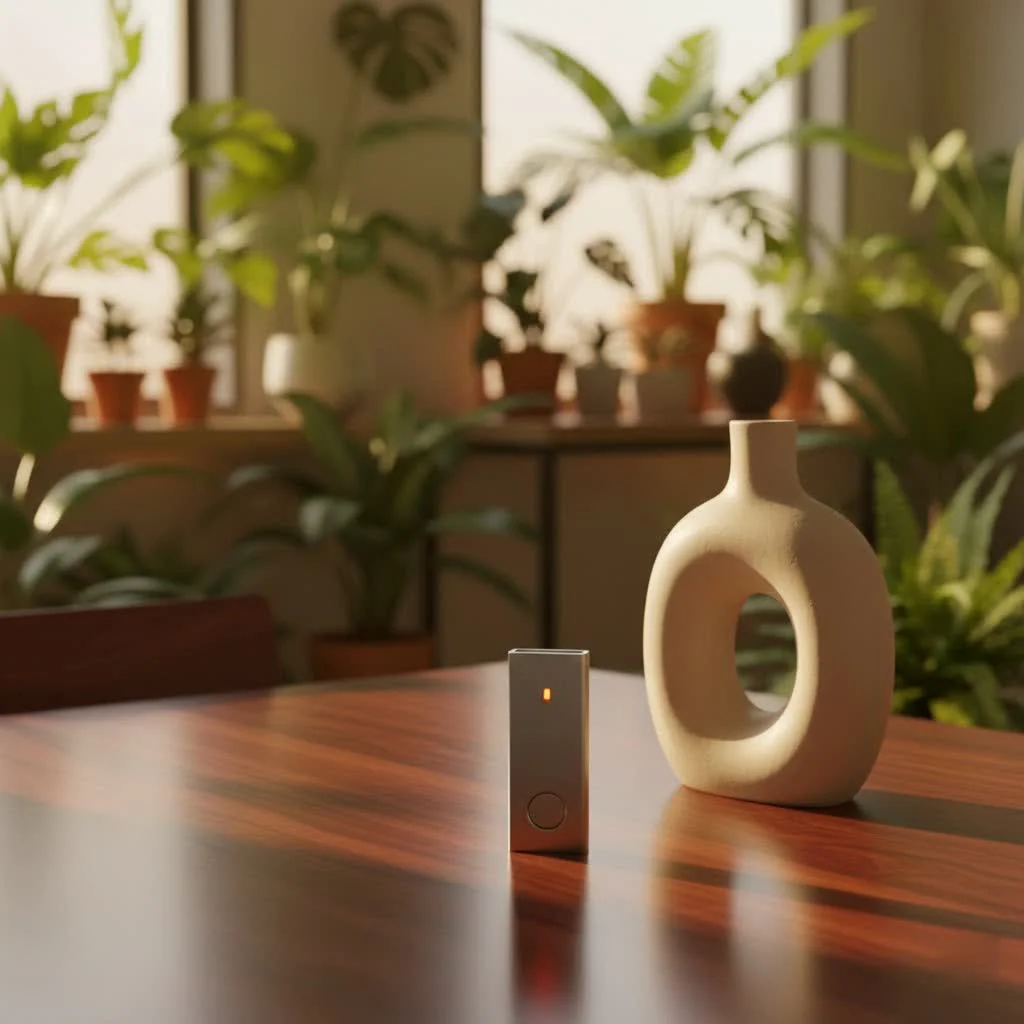
Why You Absolutely Need an Encrypted Flash Drive
Let’s face it, we all carry important data on our flash drives: personal photos, financial documents, client contracts, academic papers. The potential for a data breach, loss of earnings, or even identity theft from a misplaced USB is very real. Encrypted flash drives offer a robust solution to these modern challenges.
- Protecting Sensitive Information (Personal & Professional): Imagine losing a USB drive containing your tax returns, medical records, or a client’s proprietary project. With an encrypted flash drive, that data remains unreadable without the correct key, even if the device falls into the wrong hands. It’s essential for anyone from students protecting assignments to remote workers securing client files.
- Guard Against Loss or Theft: USB drives are inherently small and portable, making them incredibly easy to lose or have stolen. Without encryption, a lost drive is a data breach waiting to happen. An encrypted flash drive acts as a digital safe, rendering its contents useless to unauthorized individuals.
- Compliance and Peace of Mind: For businesses, complying with data protection regulations like GDPR or HIPAA is non-negotiable. Encrypted flash drives provide a vital layer of security to meet these requirements, preventing costly fines and reputational damage. Knowing your data is secure, even when mobile, offers invaluable peace of mind.
- Avoiding Malware Spread: While not their primary function, some hardware-encrypted drives offer digitally signed firmware that can help prevent malware from being written to the drive itself, adding an extra layer of defense against sophisticated cyber threats.
How Encrypted Flash Drives Work: The Secret Sauce of Security
At its core, encryption is the process of converting information or data into a code to prevent unauthorized access. An encrypted flash drive does this automatically, turning your readable files into scrambled gibberish that can only be unlocked with a specific password or key. But not all encryption is created equal.
Hardware Encryption: The Fort Knox of Flash Drives
This is often considered the gold standard for portable data security. Hardware-encrypted flash drives feature a dedicated cryptoprocessor chip built directly into the device. This chip handles all the encryption and decryption processes independently of your computer’s operating system.
- “Always-On” Security: Because encryption is handled by the hardware, it’s virtually “always on.” Your data is encrypted as it’s written to the drive and decrypted as it’s read, all within the drive itself.
- Enhanced Performance: Offloading the encryption workload to a dedicated chip often results in faster read/write speeds compared to software solutions that rely on your computer’s CPU.
- Robust Protection: Hardware encryption is significantly more secure against various attacks, including brute-force attempts, malware, and cold boot attacks. Many high-end drives come with tamper-resistant designs, physical keypads for PIN entry, and FIPS 140-2 certification (a U.S. government security standard), providing military-grade protection. “When it comes to portable data, hardware encryption offers an unparalleled defense, isolating your sensitive files from external threats with robust, built-in security mechanisms,” notes Dr. Anya Sharma, a leading expert in secure data storage.
Software Encryption: A Flexible Shield
Software encryption utilizes programs on your computer to encrypt and decrypt data stored on a regular flash drive. Popular examples include BitLocker for Windows, Disk Utility for macOS, and third-party tools like VeraCrypt.
- Flexibility and Cost-Effectiveness: You can apply software encryption to virtually any existing flash drive, making it a cost-effective solution if you don’t want to invest in a dedicated hardware-encrypted drive.
- Dependence on Host System: The security of software encryption is often tied to the security of the host computer. If your computer is compromised by malware or a keylogger, your encryption key could be vulnerable. It also typically requires installing software or drivers on each computer you use, which can be inconvenient.
- Performance Considerations: Software encryption relies on your computer’s processor, which can sometimes lead to slower performance, especially with large files, as the CPU juggles encryption with other tasks.
Choosing Your Encrypted Ally: Key Features to Look For
|
Our Picks for the Best Flash Drive in 2026
As an Amazon Associate I earn from qualifying purchases.
|
||
| Num | Product | Action |
|---|---|---|
| 1 | SanDisk 256GB Ultra Flair USB 3.0 Flash Drive - SDCZ73-256G-G46, black |

|
| 2 | SANDISK 128GB Extreme Fit USB-C Flash Drive - Up to 400MB/s Read speeds, USB 3.2 Gen 1, USB Type-C - Plug-and-Stay Storage - Black - SDCZ530-128G-G46 |
|
| 3 | SAMSUNG FIT Plus 3.1 USB Flash Drive, 128GB, 400MB/s, Plug In and Stay, Storage Expansion for Laptop, Tablet, Smart TV, Car Audio System, Gaming Console, MUF-128AB/AM,Gunmetal Gray |
|
| 4 | Amazon Basics 128 GB Ultra Fast USB 3.1 Flash Drive, Black |
|
| 5 | Amazon Basics 256 GB Ultra Fast USB 3.1 High Capacity Flash Drive for Data Transfer and Storage, Black |
|
| 6 | Amazon Basics USB Flash Drive, Thumb Drive Memory Stick with USB C and USB A Dual Ports, 128GB, Champagne Silver |
|
| 7 | USB Flash Drive 64GB, Techkey External Memory Photo Keeper Storage Stick for Picture/Video/Data Saver/Backup V2.30 High Speed Thumb/Jump/Hard Drives-Coal Black |
|
| 8 | SanDisk 64GB 2-Pack Ultra USB 3.0 Flash Drive (2x64GB) - SDCZ48-064G-GAM462, Black |
|
| 9 | USB Flash Drive 64GB, Techkey External Memory Photo Keeper Storage Stick for Picture/Video/Data Saver/Backup V1.96 High Speed Thumb/Jump/Hard Drives-Lavender Blush |
|
| 10 | SanDisk 128GB Ultra Flair USB 3.0 Flash Drive - SDCZ73-128G-G46, black |
|
Selecting the right encrypted flash drive means looking beyond just capacity. Consider these critical features:
- Encryption Standard: Always opt for drives that utilize AES 256-bit encryption. This is the Advanced Encryption Standard, and 256-bit is currently considered virtually uncrackable, making it the industry benchmark for strong data protection.
- FIPS Certification: For businesses or individuals handling highly sensitive data, look for FIPS 140-2 Level 3 certification. This signifies that the drive has undergone rigorous testing and meets strict government security requirements, especially important for regulatory compliance.
- Tamper-Proof Design: Some high-security hardware-encrypted drives feature epoxy-filled casings or mechanisms that destroy data if physical tampering is detected, adding an extra layer of physical security.
- Password/PIN Protection: Beyond just requiring a password, look for features like brute-force protection, which locks the drive after a certain number of incorrect PIN attempts, preventing unauthorized users from guessing their way in. Physical keypads add an additional layer of security, as PIN entry is handled directly on the device, bypassing potential software vulnerabilities.
- Capacity and Speed: While security is paramount, don’t overlook practical considerations. Choose a capacity that suits your needs and ensure it supports modern interfaces like USB 3.0, 3.1, or Type-C for faster data transfer speeds.
Setting Up Your Encrypted Flash Drive: A Simple Path to Security
Getting started with an encrypted flash drive is often simpler than you might think.
- For Hardware-Encrypted Drives: These drives typically come pre-configured with the encryption built-in. Your initial setup will usually involve setting a secure PIN or password through a physical keypad on the drive itself or via a dedicated utility provided by the manufacturer. Once set, the drive automatically encrypts and decrypts your data whenever it’s accessed with the correct credentials.
- For Software Encryption (Windows BitLocker):
- Plug your flash drive into a USB port on your Windows PC.
- Open File Explorer, right-click on your flash drive, and select “Turn on BitLocker.”
- Choose a strong password or use a smart card.
- Select a method to save your recovery key (e.g., to your Microsoft account, a file, or print it). This key is crucial if you forget your password.
- Choose whether to encrypt the entire drive or just the used space (for new drives, encrypting the whole drive is recommended).
- Start encrypting and wait for the process to complete. Remember to back up any existing data on the drive beforehand, as some processes may format the drive.
- For Software Encryption (macOS Disk Utility):
- Plug your USB drive into your Mac.
- Crucial Step: Back up all data from the flash drive, as this process will erase it.
- Open Disk Utility (Applications > Utilities).
- Select your USB drive in the sidebar, then click “Erase.”
- In the format options, choose “Mac OS Extended (Journaled, Encrypted)” and set a strong password.
- Confirm the erase and encryption process.
SPVFD’s Best Practices for Encrypted Flash Drive Usage
Owning an encrypted flash drive is a great start, but how you use it is just as important. Here are our top tips:
- Strong, Unique Passwords/Passphrases: This cannot be stressed enough. Avoid easily guessable PINs or passwords like “1234” or your birthdate. Opt for long, complex passphrases that combine letters, numbers, and symbols. The stronger your password, the more secure your data.
- Regular Backups: Even with an encrypted drive, data loss can occur due to drive failure or accidental deletion. Always back up your critical data to multiple secure locations, like a trusted cloud service or an external hard drive.
- Beware of Malware: While hardware encryption offers strong protection, no system is entirely foolproof. Always scan any flash drive for malware before use, especially if it’s been used on public computers. Ensure your operating system and antivirus software are always up to date.
- Physical Security: Keep your encrypted flash drive in a secure location when not in use. Its small size makes it convenient, but also easy to misplace. Consider a small, lockable case or a secure drawer.
- Education: If you’re part of an organization, educate all users on the importance of encrypted drives and the best practices for their safe handling. A chain is only as strong as its weakest link.
The SPVFD Verdict: Investing in Data Peace of Mind
An encrypted flash drive is no longer a luxury; it’s a necessity in our interconnected world. From protecting personal memories to safeguarding corporate secrets, these devices offer a powerful and portable solution for data security. While hardware-encrypted drives provide the highest level of protection, software solutions offer a viable alternative for many users. The investment in an encrypted flash drive is an investment in your peace of mind, ensuring that your valuable data remains yours, no matter where your digital journey takes you. Don’t wait for a data disaster to strike; take control of your data security today with an encrypted flash drive.
Frequently Asked Questions (FAQ)
Q1: What exactly is an encrypted flash drive?
A1: An encrypted flash drive is a portable storage device that uses advanced encryption techniques to protect your data. It scrambles the information stored on it, making it unreadable to anyone without the correct password or decryption key, even if the drive is lost or stolen.
Q2: Are hardware or software encrypted drives better?
A2: Hardware-encrypted drives generally offer superior security and performance. They use a dedicated chip for encryption, making them more resistant to various attacks and independent of the host computer’s security. Software encryption, while flexible and cost-effective, relies on the computer’s resources and is only as secure as the system it’s used on.
Q3: Can I recover data if I forget my encrypted flash drive’s password?
A3: For most encrypted drives, if you forget your password and don’t have a recovery key or the correct administrative access, your data will be permanently inaccessible. This is a core part of their security. Always keep your password memorable and securely store any recovery keys.
Q4: Are encrypted flash drives immune to viruses?
A4: Encrypted flash drives protect the data on the drive from unauthorized access, but they are not inherently immune to viruses or malware. If you connect an encrypted drive to an infected computer, malware can still be written to the drive once it’s unlocked, potentially infecting other systems. Always use antivirus software and scan drives before use.
Q5: How often should I change my drive’s password?
A5: While there’s no strict rule, it’s good practice to change important passwords, including those for your encrypted flash drive, periodically – perhaps every 6-12 months. This enhances security, especially if you suspect your password might have been compromised.
Get our weekly buyer guide
Practical specs, not advice. Unsubscribe anytime.